Branding Assets
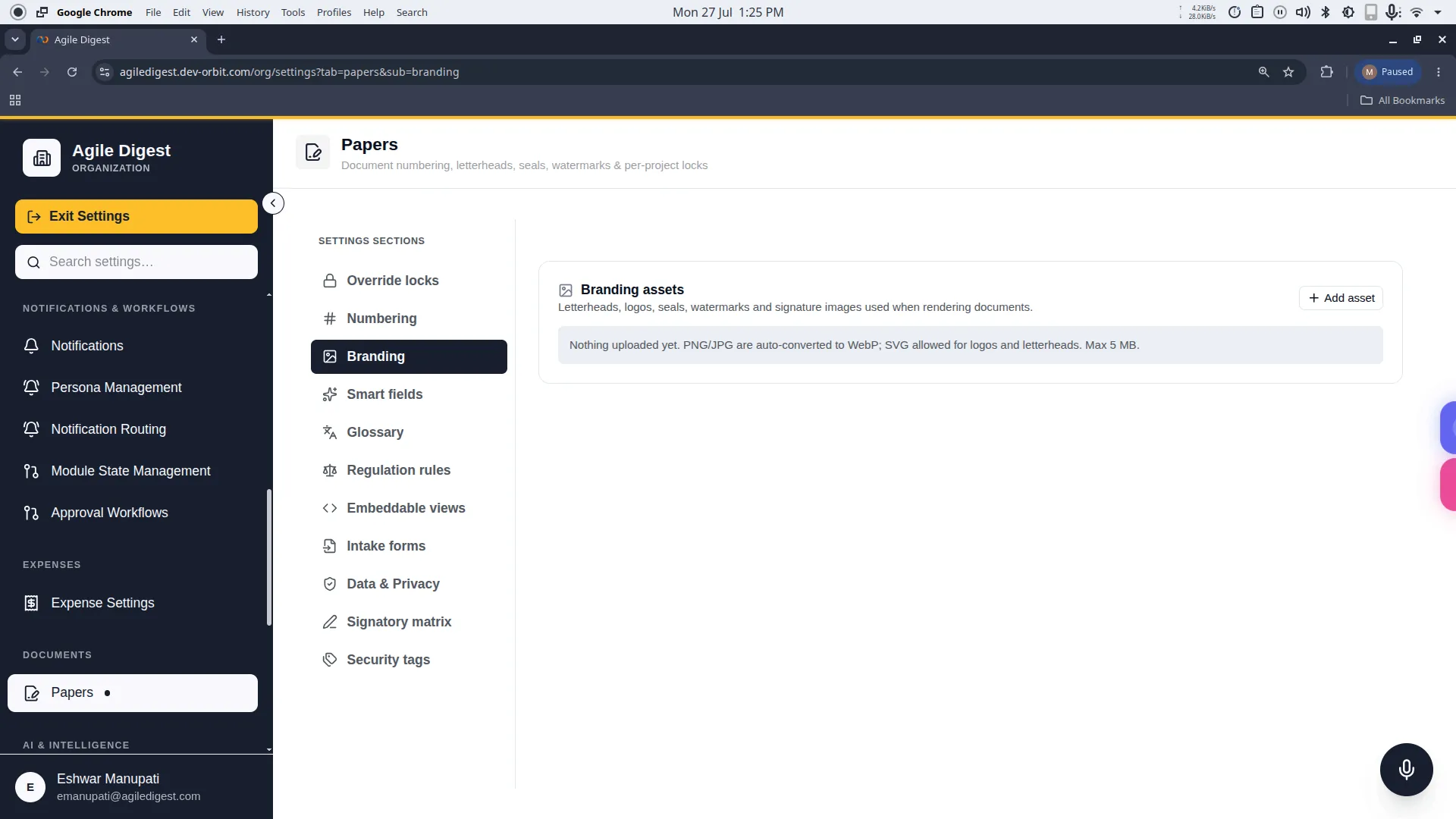
Welcome to the Branding Assets guide.
This section allows you to manage the visual identity of all documents generated by the system. By uploading your organization's graphics here, they are automatically and perfectly placed into your PDF documents (such as headers, footers, and backgrounds).
How to Access
To manage these settings, navigate to: Settings → Papers → Branding (or click the Branding tab in the Papers settings rail).
Adding a New Asset
To add a new graphic, click the + Add asset button. This will open the configuration drawer.
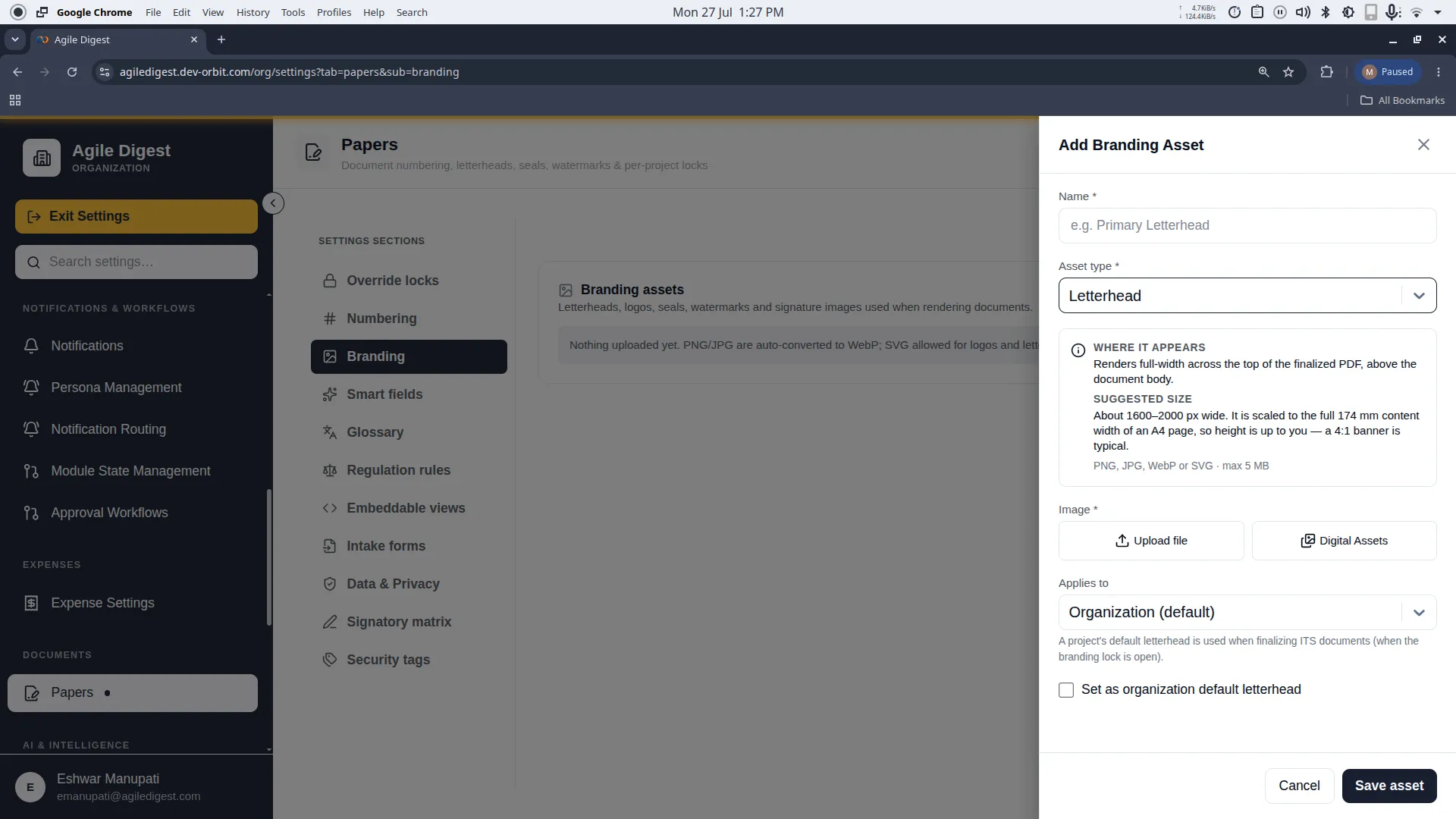
1. Asset Types
You must categorize the graphic so the system knows exactly where to place it on the document:
- Letterhead: Usually spans the top header of the document.
- Logo: A smaller, standalone brand mark.
- Seal: Used for official certifications or stamps.
- Watermark: A transparent image placed behind the document text.
- Signature: Digital signatures appended at the bottom of agreements.
2. Sourcing the File
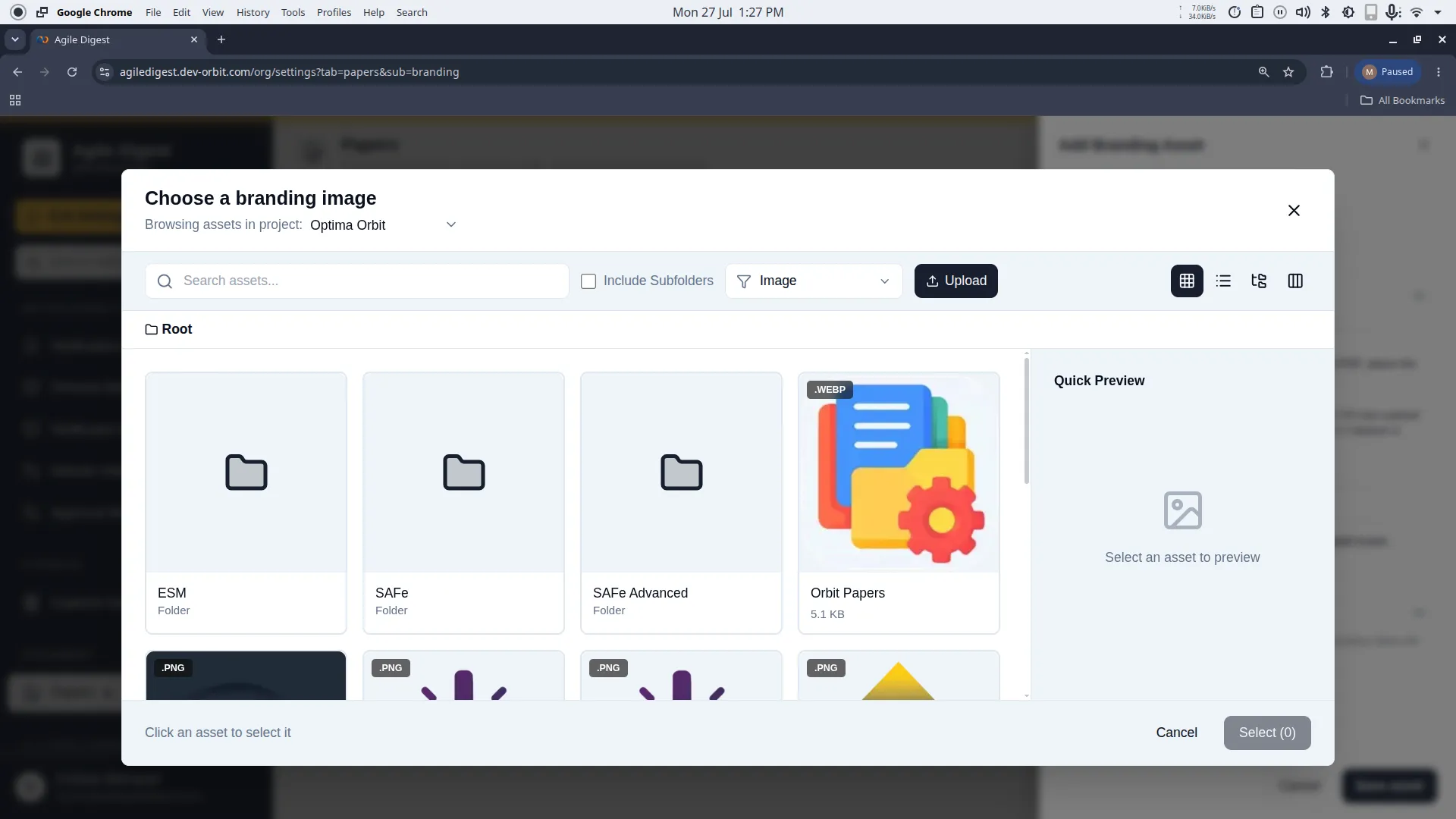
You have two options for providing the actual image file:
-
Direct Upload: Upload a file directly from your computer (PNG or JPG up to 5MB). The system will automatically compress and convert it to WebP for optimal rendering speed.
-
Digital Assets Library: If the image is already stored in your central repository, click to open the picker modal and select it.
[!TIP] Best Practices for Quality
Whenever possible, we highly recommend using SVG vector files for Logos and Letterheads. SVGs ensure perfect print quality without pixelation, regardless of how far the document is zoomed in.
3. Applies To (Scope)
Just like Numbering Sequences, you must define the scope of the asset:
- Organization (Default): The branding asset will be available to all projects.
- Project Override: If a specific project has an unlocked Branding Lock (e.g., a sub-brand or a specific client), you can restrict this asset so it is exclusively used by them.
Managing Your Assets (Defaults & Deletions)
Setting Defaults
When you have multiple assets of the same type (for example, 3 different letterheads), you need to tell the system which one to use automatically.
-
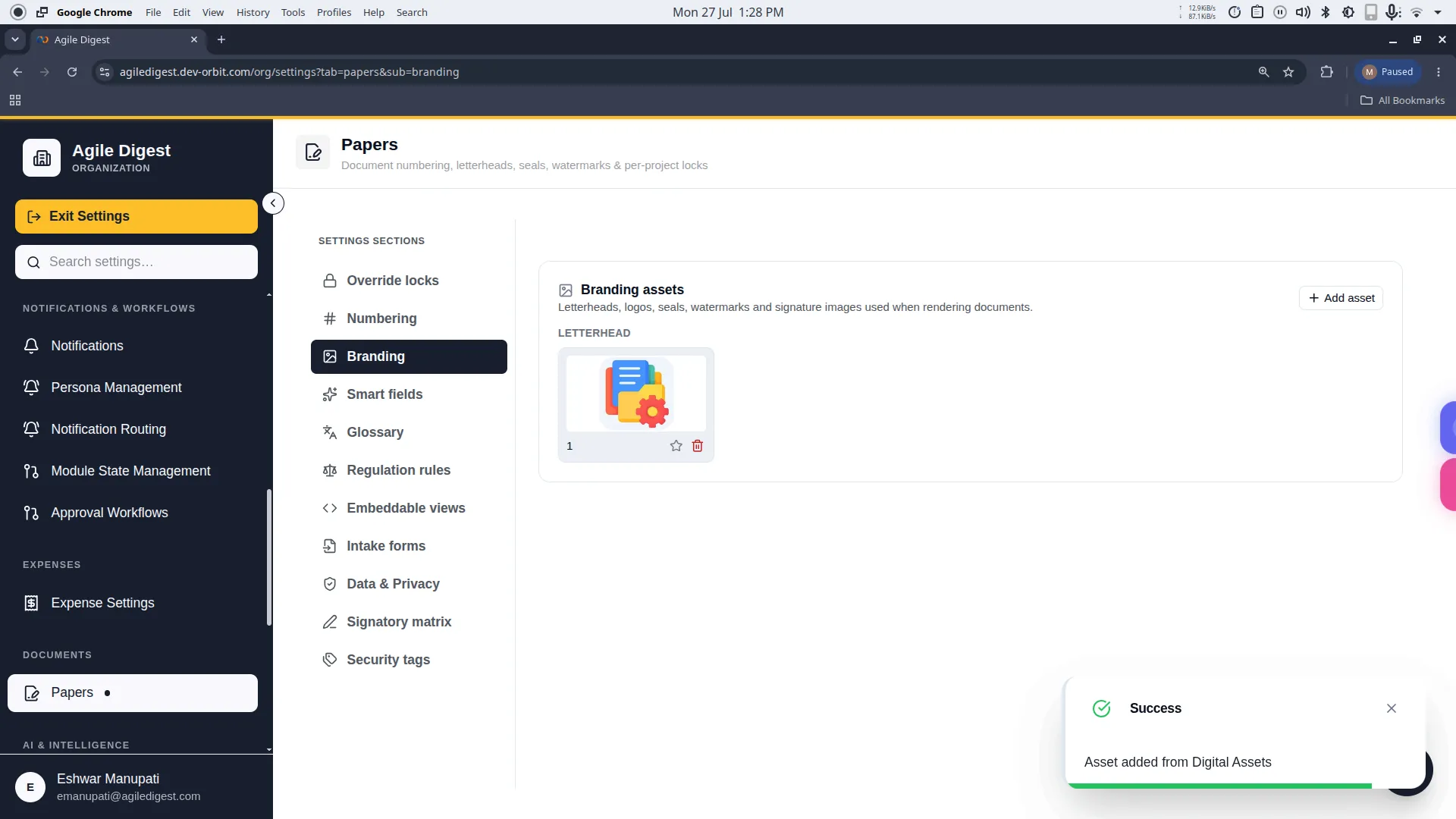
Click the Star Icon on any uploaded asset card.
-
The star will turn yellow, confirming this asset is now the active default.
Deleting Assets
Hover over any asset card to reveal the Delete action (a trash can icon).
[!WARNING] Deletion Impact
Unlike Numbering Sequences, you can delete branding assets at any time. However, be aware that any active document templates currently referencing the deleted asset will simply render without it, potentially leaving a blank space where the logo used to be.