Numbering Sequences
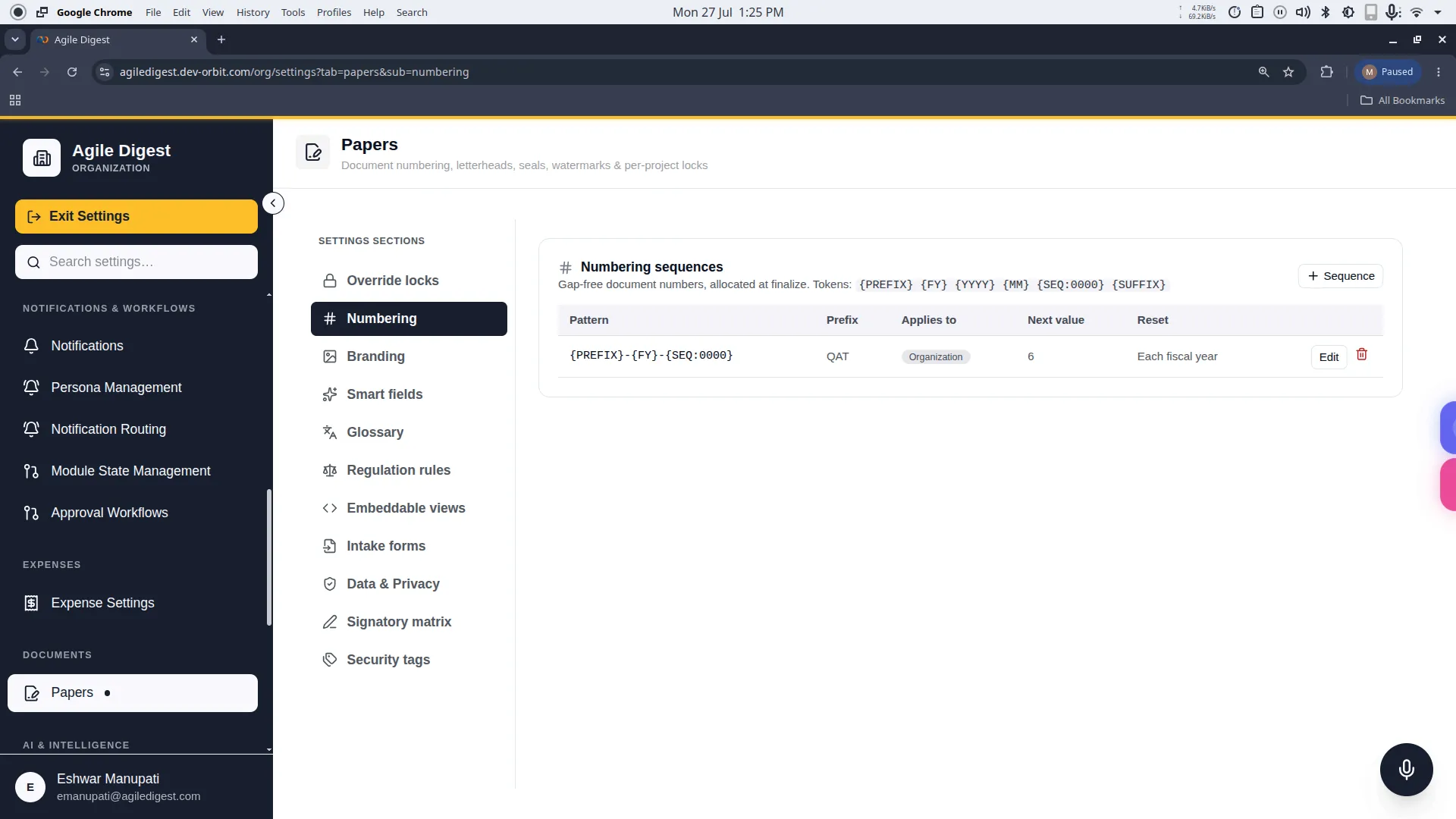
Welcome to the Numbering Sequences guide.
This section allows you to create automated, gap-free numbering systems for your documents (for example, AGR-2026-0001). These numbers are automatically allocated to documents the moment they are finalized, ensuring a perfect chronological audit trail without any missing numbers.
How to Access
To manage these settings, navigate to: Settings → Papers → Numbering Sequences (or via the Numbering tab in the Papers settings rail).
Creating a Sequence
To create a new numbering system, click the + Sequence button. This opens a configuration drawer where you define exactly how your numbers should look and behave.
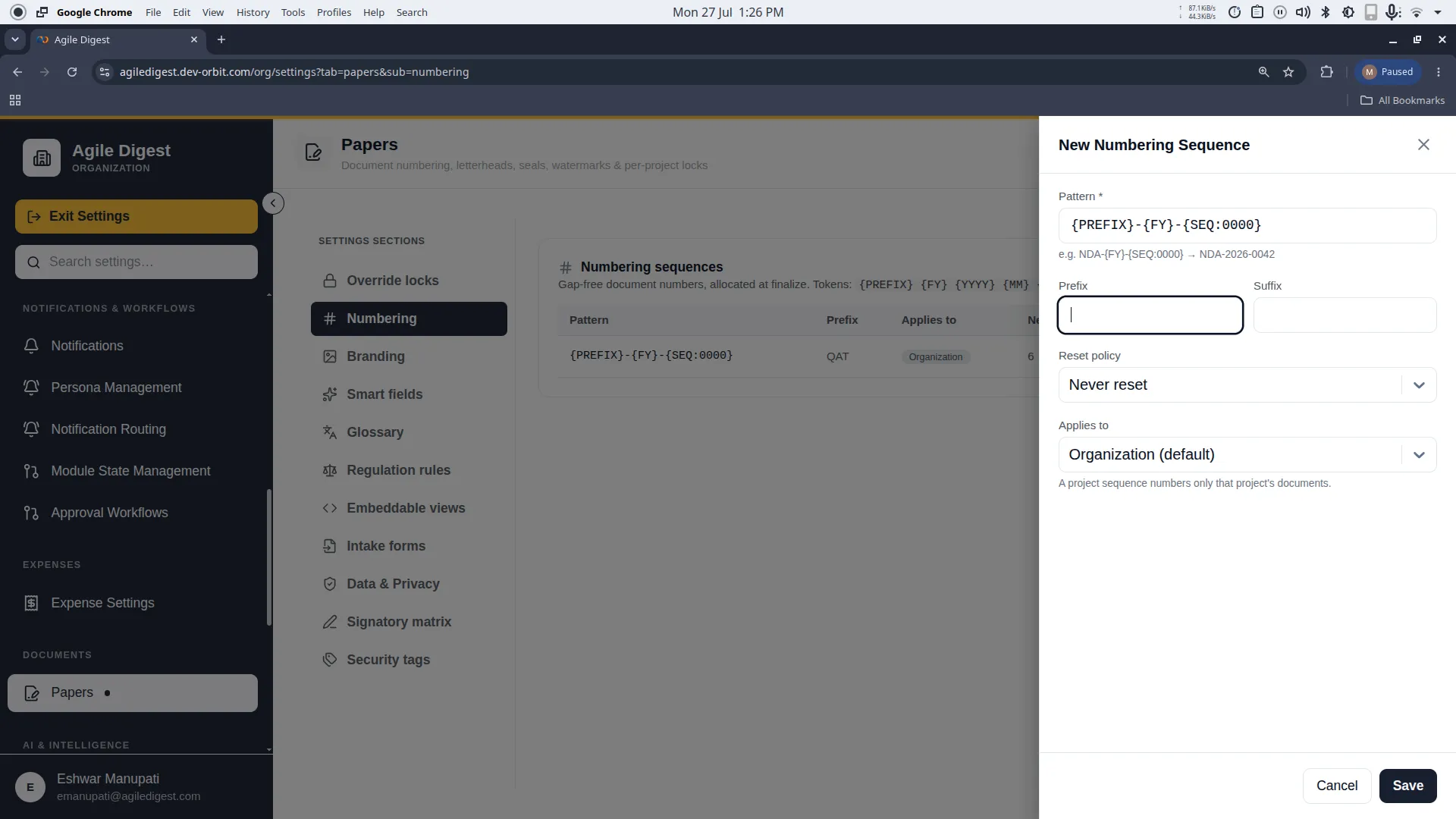
1. The Pattern (Tokens)
The core of your sequence is the Pattern. You construct your pattern using dynamic tokens that automatically fill in the correct information when a document is generated.
Available tokens include:
{PREFIX}: Injects the prefix you define in the form.{SUFFIX}: Injects the suffix you define in the form.{YYYY}or{FY}: Automatically inserts the current Calendar Year or Fiscal Year.{MM}: Automatically inserts the current Month.{SEQ:0000}: (Mandatory) The actual sequential counter. The number of zeros dictates how many digits long the number will be (e.g.,0001,0002).
Example Pattern: {PREFIX}-{FY}-{SEQ:0000} would generate PREFIX-2026-0001.
2. Reset Policies
You can choose when the sequential counter should reset back to 1. This is critical for yearly or monthly filing systems.
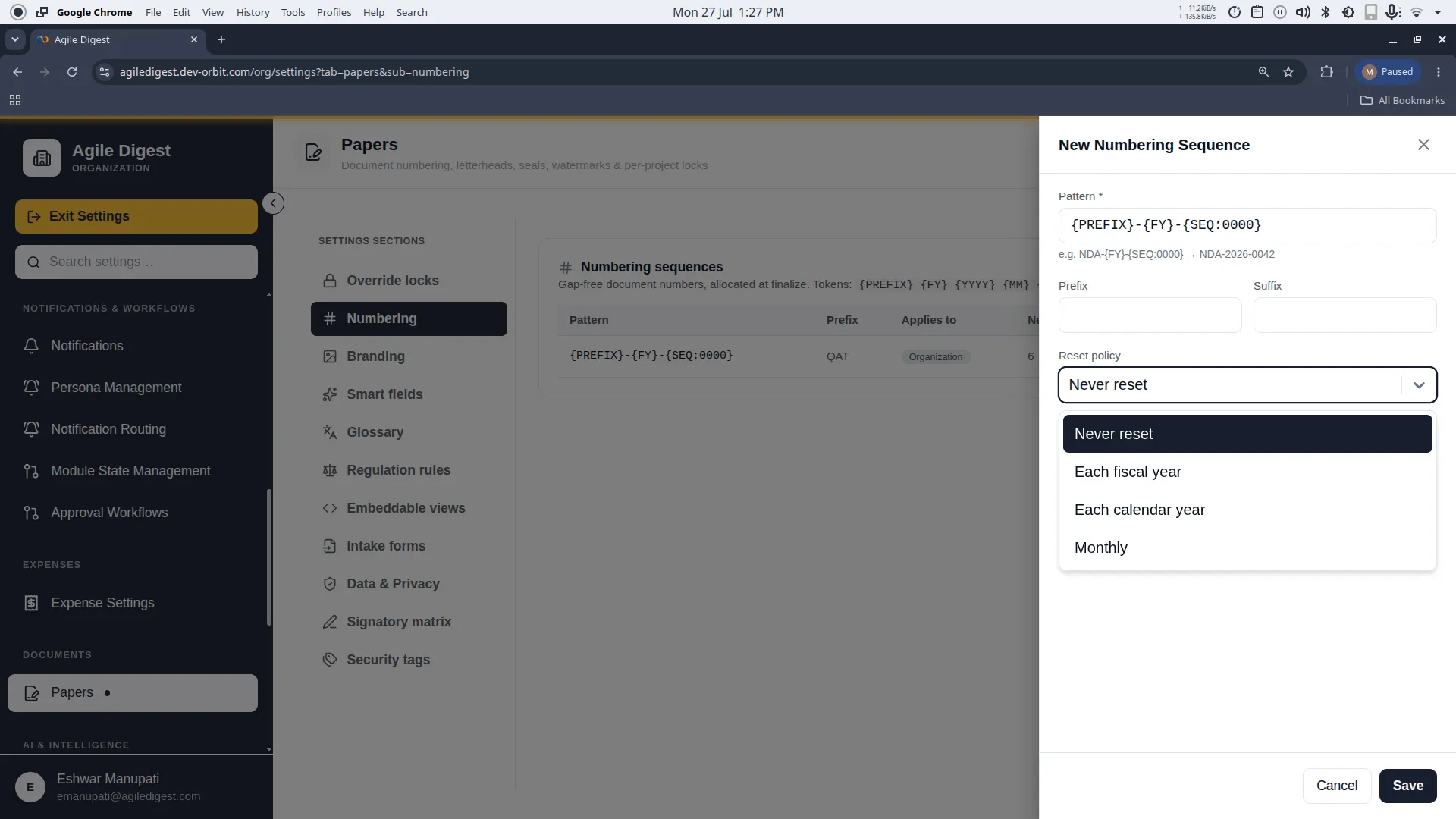
- Never reset: The counter goes up forever (e.g., 0001 to 9999+).
- Each fiscal year: Resets to 1 at the start of your company's fiscal year.
- Each calendar year: Resets to 1 every January 1st.
- Monthly: Resets to 1 on the first of every month.
3. Applies To (Scope)
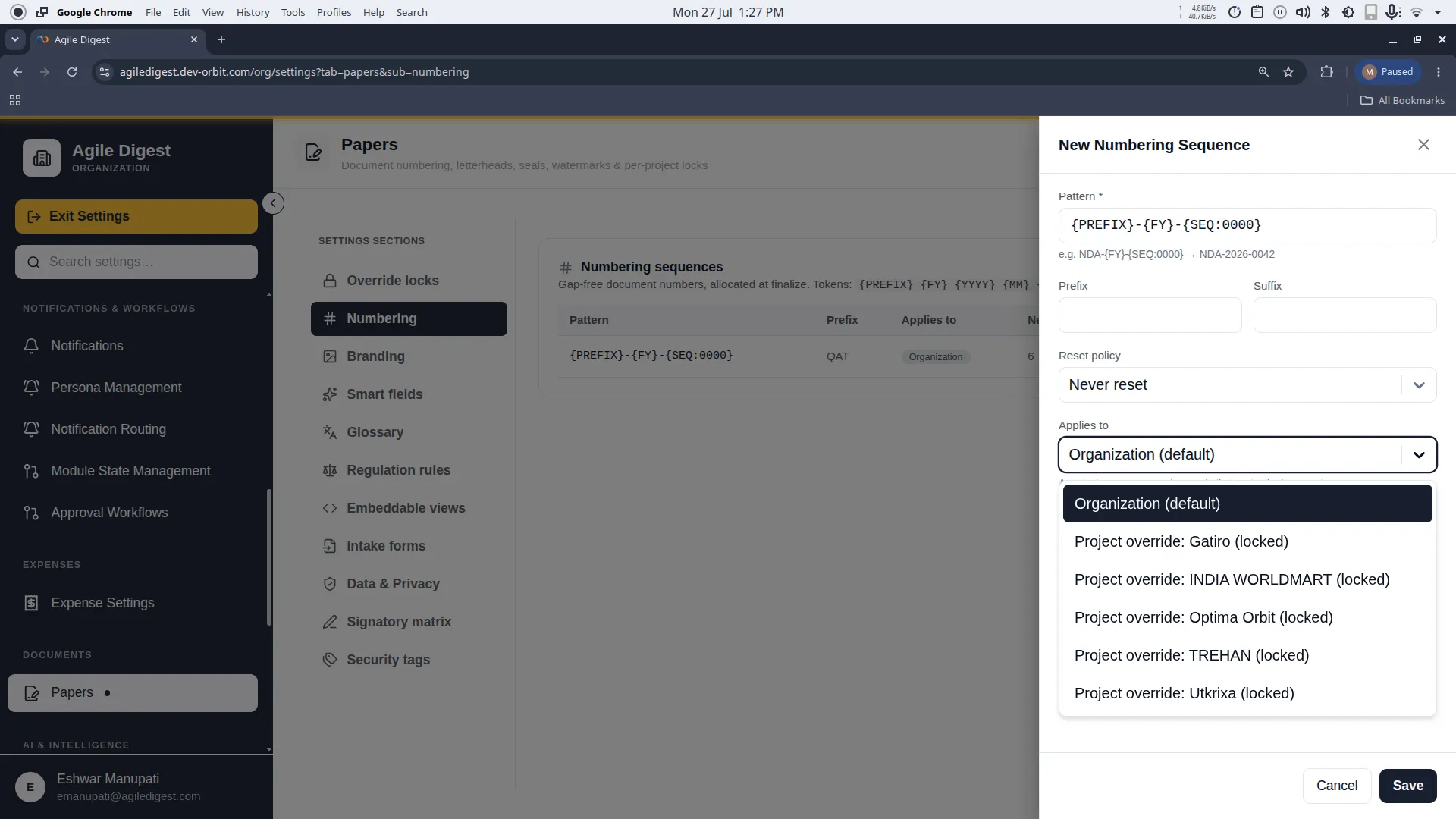
You must decide where this sequence is used.
- Organization (Default): The sequence is available globally to all projects.
- Project Override: If a project has its Numbering Lock "unlocked," you can assign a unique sequence exclusively to that project.
Managing Sequences (Edit & Delete)
When you view your list of sequences, you will see a table displaying the Pattern, Next Value, and Reset Policy.
To modify or remove a sequence, hover your mouse over the sequence's row. Hidden Edit and Delete actions will appear on the far right.
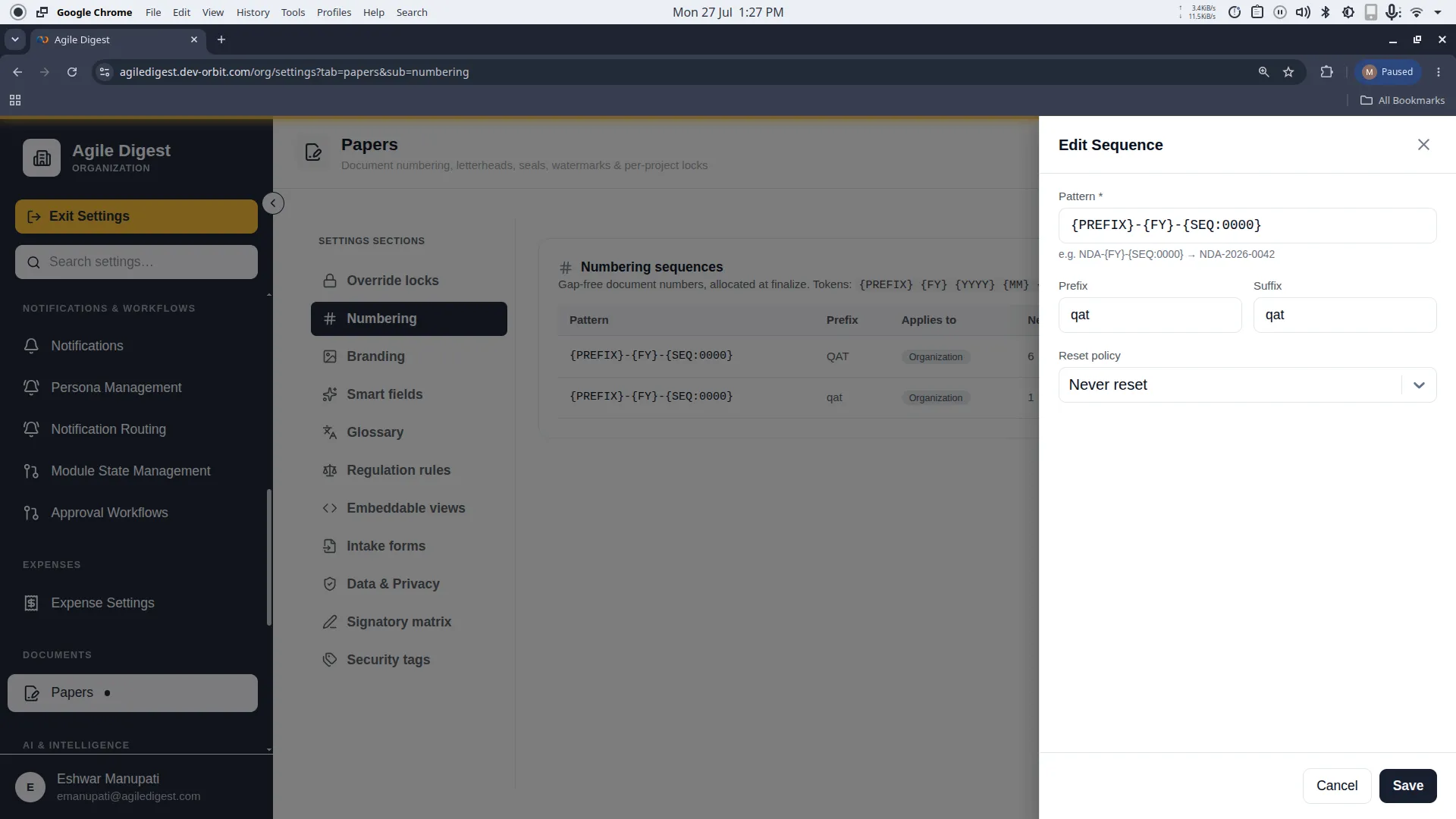
Editing a Sequence
Clicking Edit re-opens the configuration drawer, allowing you to tweak an existing numbering system.
- What you can change: You are free to update the
Pattern,Prefix,Suffix, andReset Policyat any time. - What you cannot change (Gotcha): You cannot change the Scope (Applies To) of an existing sequence. Once a sequence is assigned to the Organization or a specific Project, it is permanently locked to that scope. If you made a mistake with the scope, you must create a new sequence.
[!WARNING] Deletion Protection (Audit Trails)
If a sequence has already allocated numbers to live documents, the system will actively block you from deleting it. This is a strict compliance measure to protect audit trails and guarantee gap-free numbering. If a sequence has never been used (its next value is 1), you may delete it freely.