Override Locks
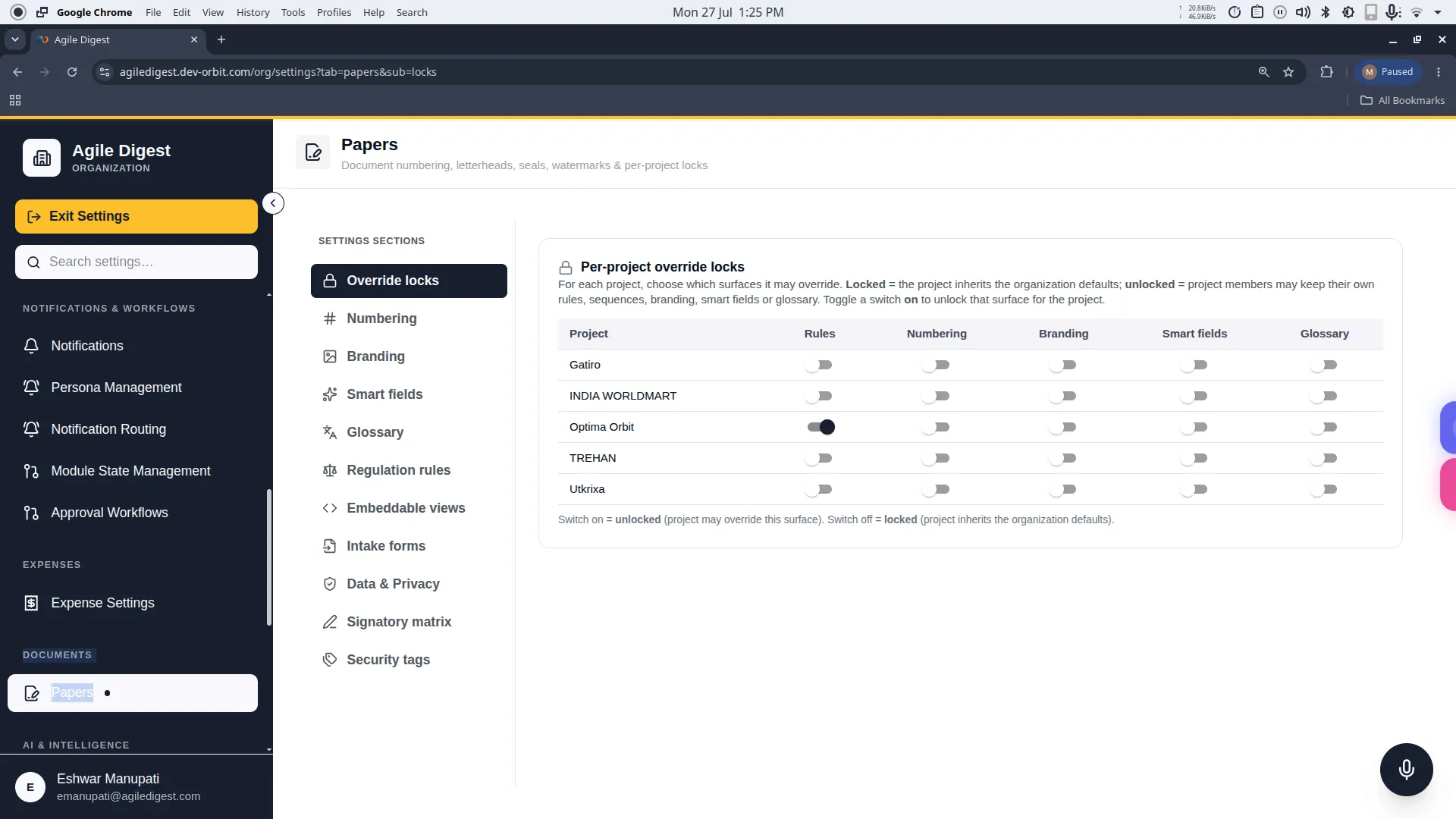
Welcome to the Override Locks guide.
By default, all projects within your organization share the same central "master settings". However, there are times when a specific project requires the independence to use its own dedicated configurations. The Override Locks feature acts as the gateway to grant or restrict this autonomy.
How to Access
To manage these locks, navigate to:
Settings → Papers → Override Locks (via the URL path /org/settings?tab=papers&sub=locks).
The Core Concept: Inherit vs. Override
When you access the Override Locks section, you will see a grid where Projects are listed in rows, and various Settings Surfaces are listed in columns.
Within each cell of the grid is a toggle switch representing the "Lock":
- Locked (Switch Off): The project is strictly bound to the organization's global settings. It must inherit the master configurations and cannot diverge.
- Unlocked (Switch On): You are explicitly granting the project permission to break away from the master settings. The project administrators can now maintain their own independent overrides exclusively for that project.
What is the impact?
The status of these locks dictates how strictly your organization enforces standard practices:
- Consistent Enforcement: Keeping a lock enabled (Switch Off) guarantees uniformity across all projects, preventing unauthorized or rogue configurations.
- Project Autonomy: Disabling a lock (Switch On) provides the necessary flexibility for specialized projects, joint-ventures, or isolated teams to operate with their own unique requirements without impacting the rest of the company.
(Note: Toggling a switch instantly updates the UI and securely commits the lock state to the database.)