Regulation Rules & Security Sweeps (Drift Monitoring)
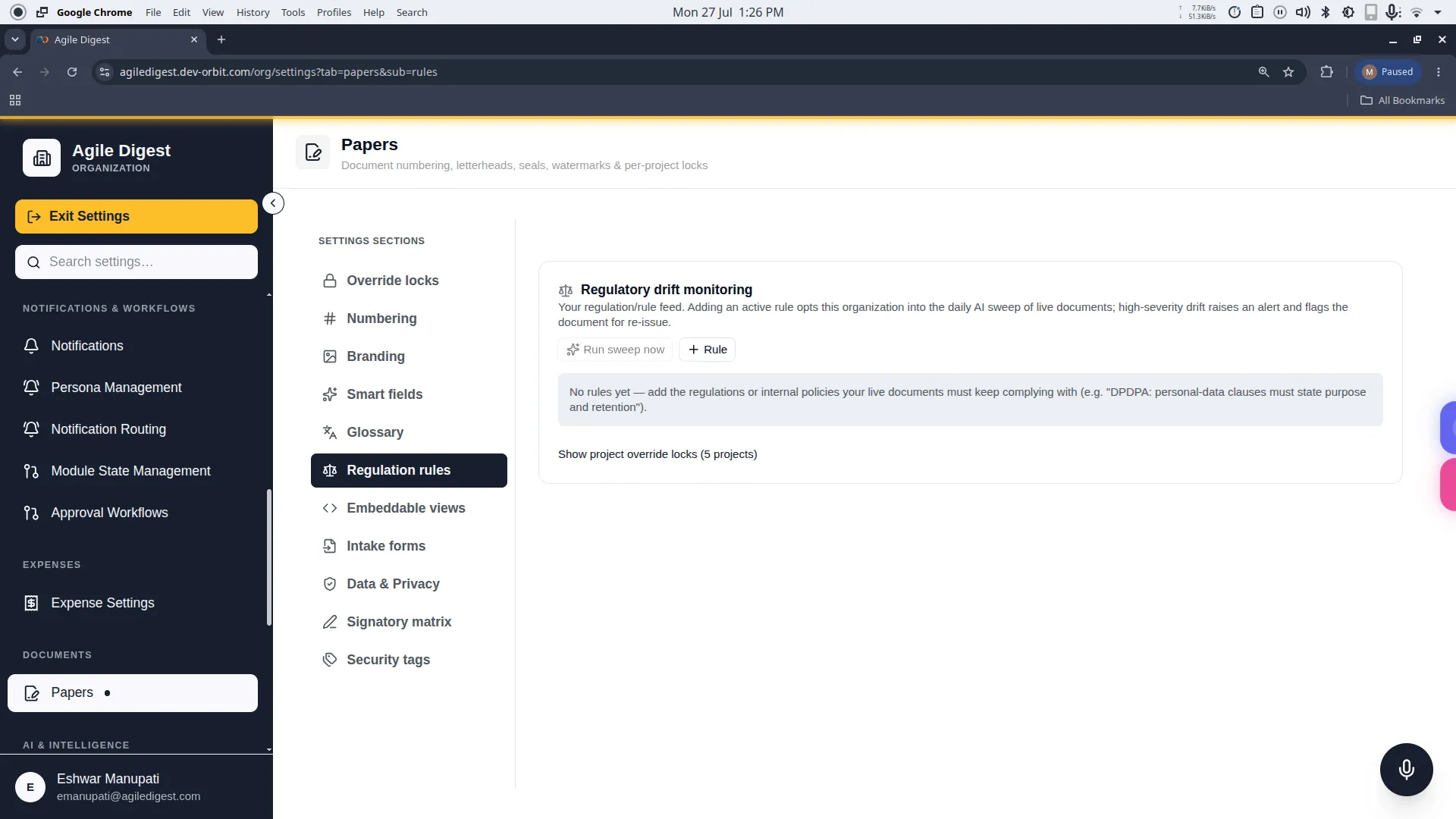
Welcome to the Security & Compliance engine.
As laws change (like the DPDPA or GDPR), you need to know if the thousands of contracts you've already signed still comply with new requirements. This engine performs daily AI sweeps across all live documents to detect Regulatory Drift, ensuring they meet your rules.
Deep Dive: How the Sweep Works
Adding just one active rule automatically opts your organization into the daily AI sweep. Every night, the AI will read your active documents and cross-reference them against your rules. If a document violates a rule (e.g., it lacks a mandatory 30-day data retention clause), the AI generates an Audit Finding. If the AI flags a High Severity drift, the system will automatically freeze that document and flag it for a mandatory re-issue!
How to Access
To manage these settings, navigate to: Settings → Papers → Regulation rules (or click the Regulation rules tab in the Papers settings rail).
Adding a Regulation Rule
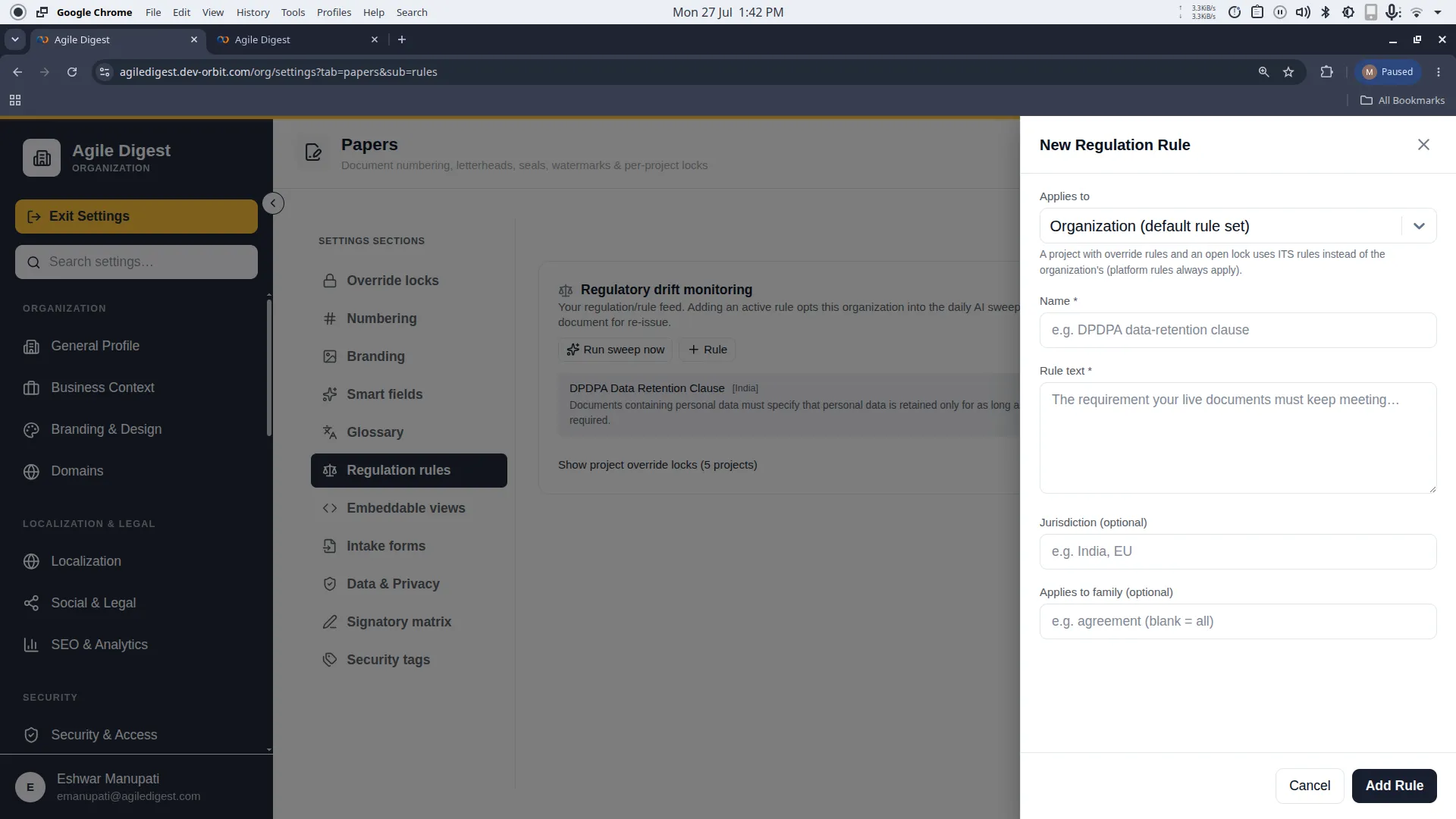
To define a new compliance requirement, click the + Rule button. This opens the configuration drawer.
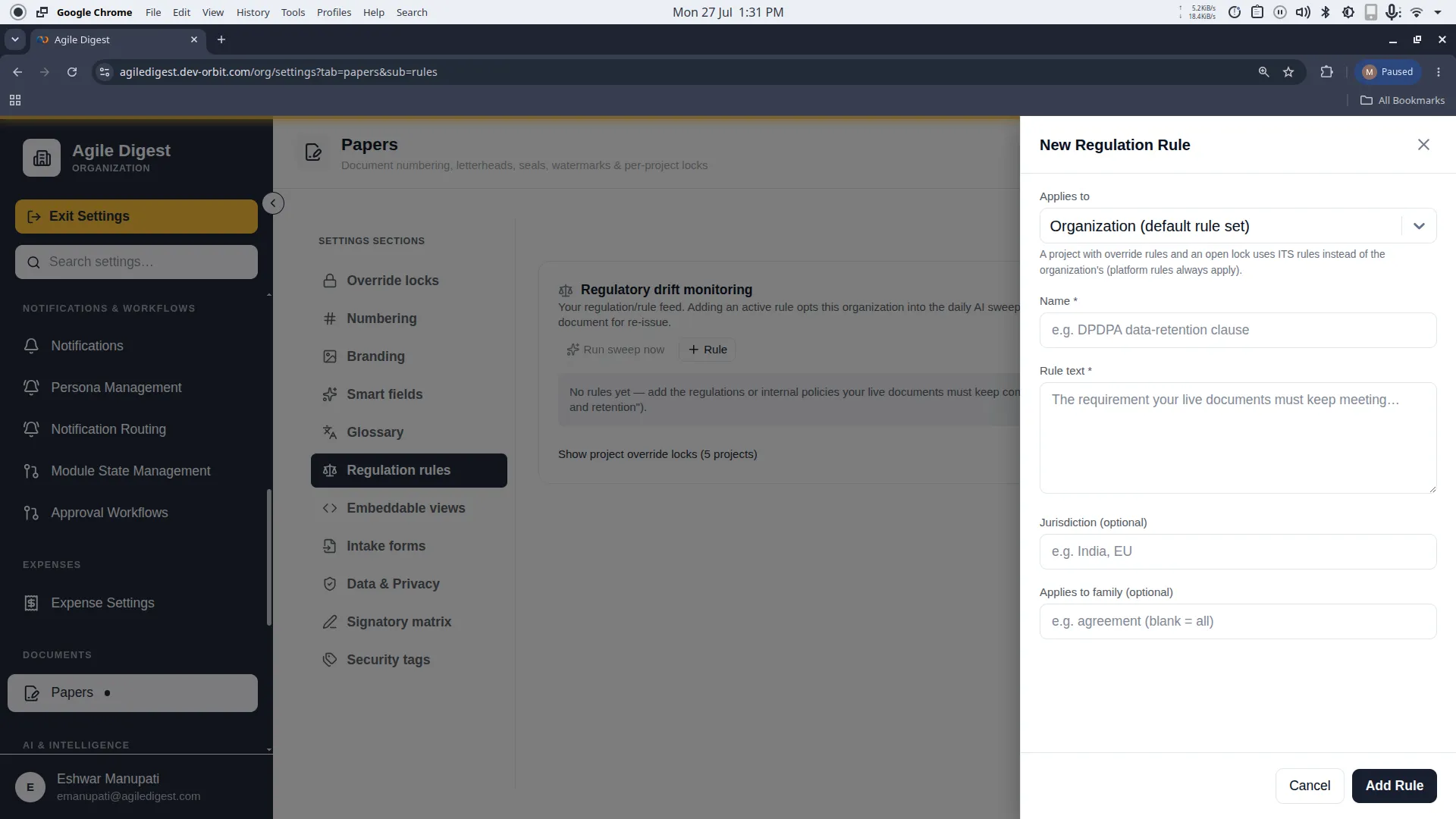
1. Rule Definition
- Name: A short label for the regulation (e.g., "DPDPA Retention").
- Rule text: The exact requirement the AI should check for (e.g., "All contracts must explicitly state a maximum data retention of 30 days post-termination").
2. Context & Filtering (Optional)
- Jurisdiction: If this rule only applies to a specific legal region (e.g., "EU" for GDPR).
- Applies to family: If this rule should only run against specific document types (e.g.,
agreement).- Gotcha: If left blank, the sweep runs this rule against every document family in your system.
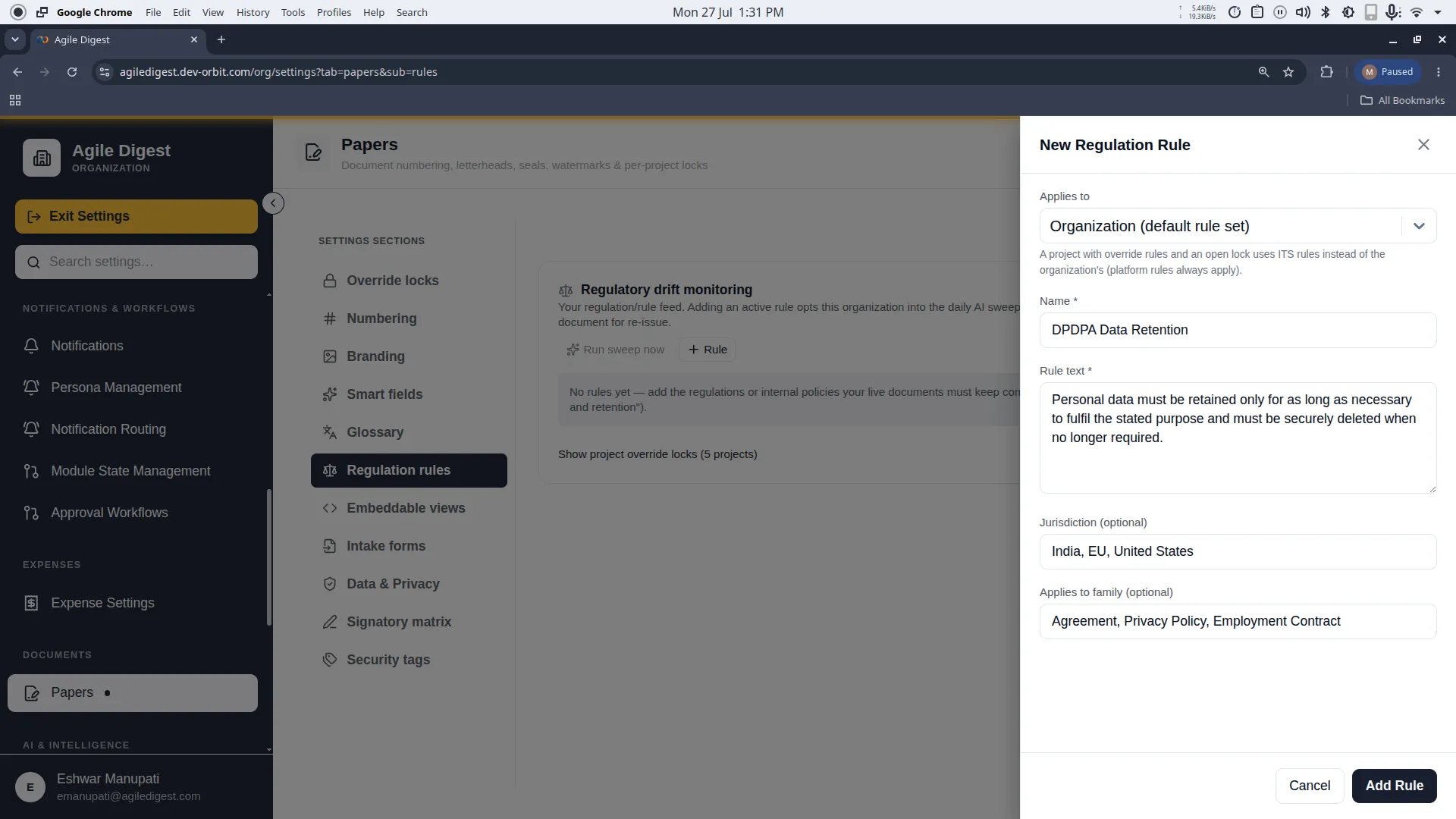
3. Applies To (Scope)
- Organization (Default): The rule applies universally to all projects.
- Project Override: If a project has an unlocked Rules Lock, you can assign a bespoke compliance rule exclusively to them.
[!NOTE] Platform Rules
Occasionally, you may see rules tagged with a blue Platform badge. These are curated by the Orbit system globally. Platform rules always apply to everyone, and you cannot edit or disable them.
Managing Your Rules (Edit & Delete)
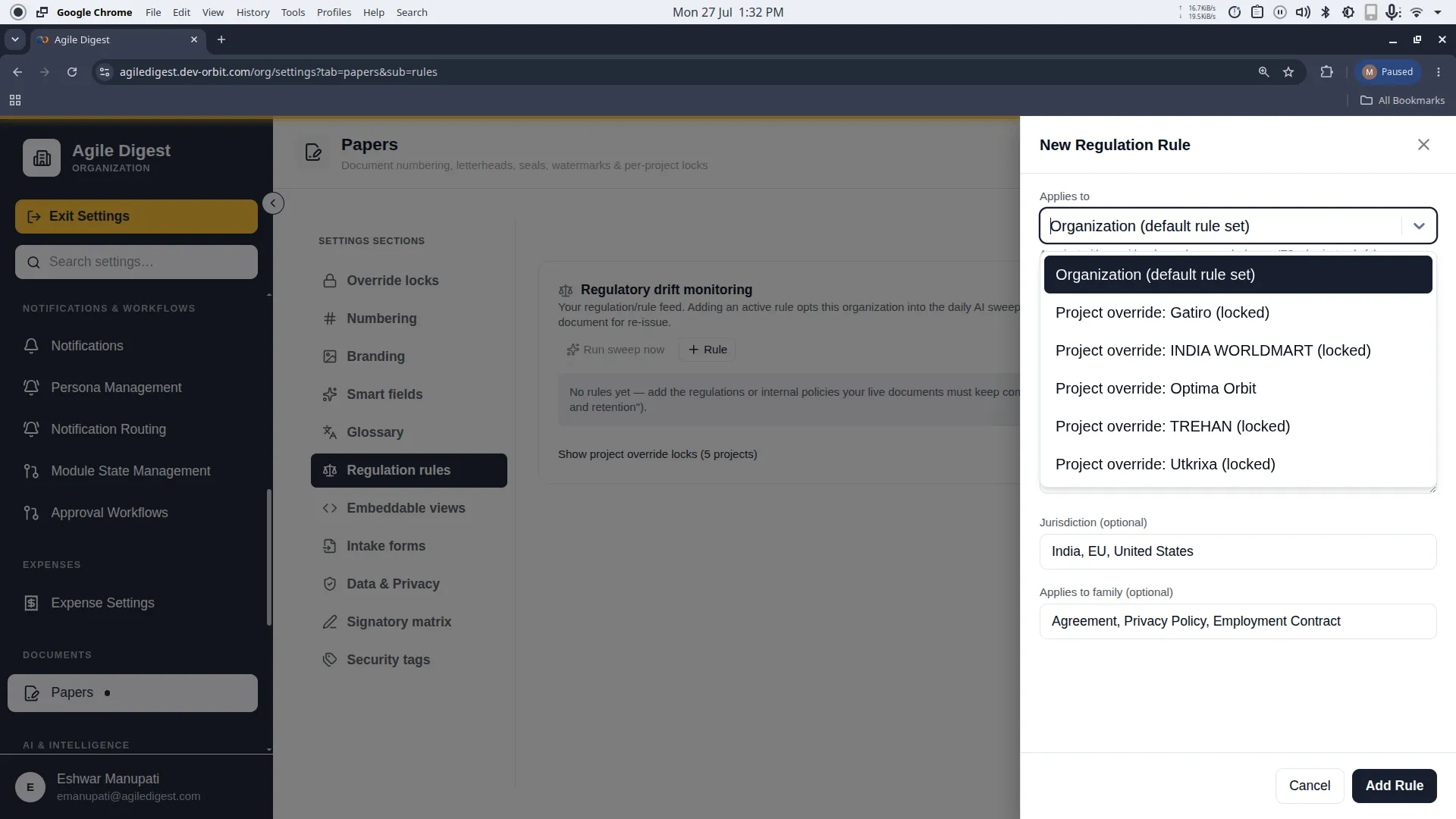
Pausing (Active Toggle)
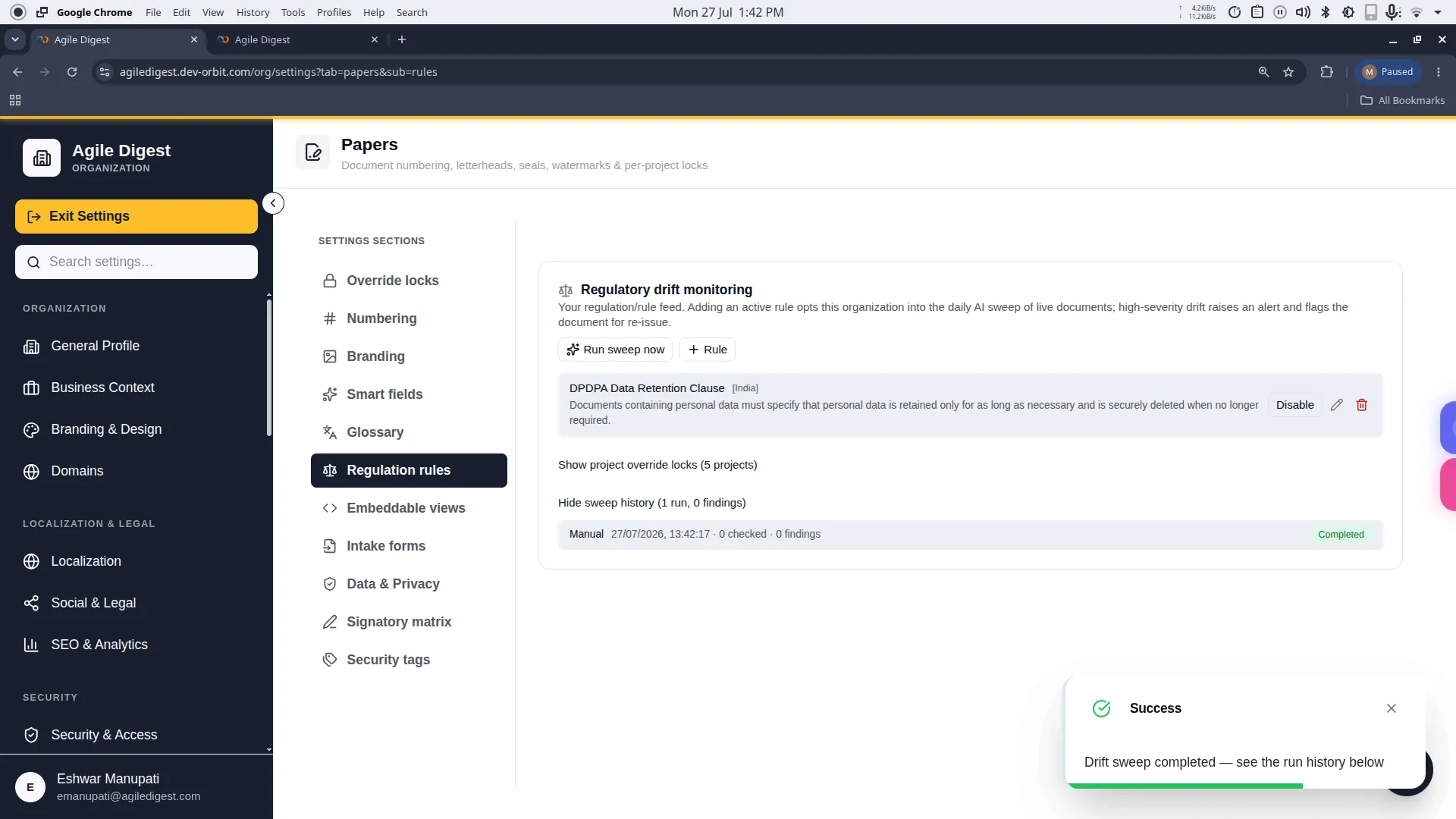
You can pause a rule by clicking Disable in the grid. Inactive rules are completely skipped during the nightly sweep.
Editing a Rule
Hover over a rule you created to reveal the Edit (Pencil) button.
- What you can change: You are free to update the Name, Rule Text, Jurisdiction, and Family.
- What you cannot change (Gotcha): Once created, you cannot change the Scope (whether it applies to the Organization or a Project).
Deleting a Rule
Hover over a rule to reveal the Delete (Trash) action.
[!WARNING] Deletion Impact
Deleting a rule immediately removes it from future nightly sweeps. However, any past audit findings triggered by this rule are permanently kept in the Sweep History for legal auditing purposes.
Running a Manual Sweep & Audit Logs
If you just added a critical new rule, you don't have to wait for the nightly sweep.
- Click Run sweep now at the top right to manually trigger the AI audit. A loading spinner will appear while the AI reads your documents.
- Once finished, a hidden section will appear at the bottom. Click Show sweep history to reveal the detailed audit log.
Understanding Findings
Audit findings are visually tagged with severity chips:
- Red (High): Critical compliance failure. The document is flagged for mandatory re-issue.
- Yellow (Medium): A warning that should be reviewed by the legal team, but doesn't strictly invalidate the document yet.