AI — Smart Fields & Indexing
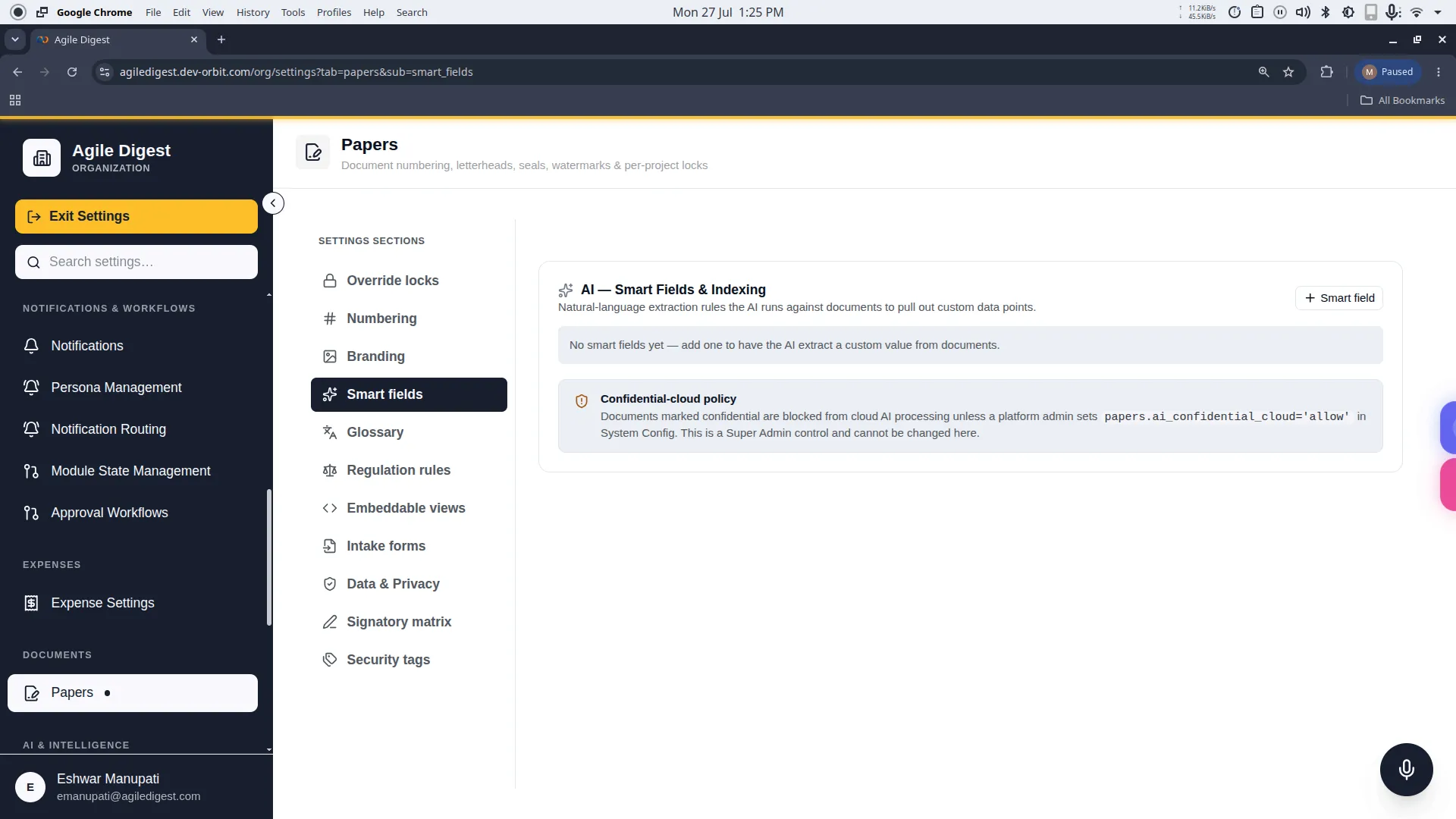
Welcome to the Smart Fields guide.
Smart Fields are natural-language instructions that you give directly to the Orbit AI. Whenever a document is uploaded or finalized, the AI will automatically read the document and extract specific data points based on these rules, saving you from manual data entry.
How to Access
To manage these settings, navigate to: Settings → Papers → Smart Fields (or click the Smart Fields tab in the Papers settings rail).
Creating a Smart Field
To teach the AI a new rule, click the + Smart Field button to open the configuration drawer.
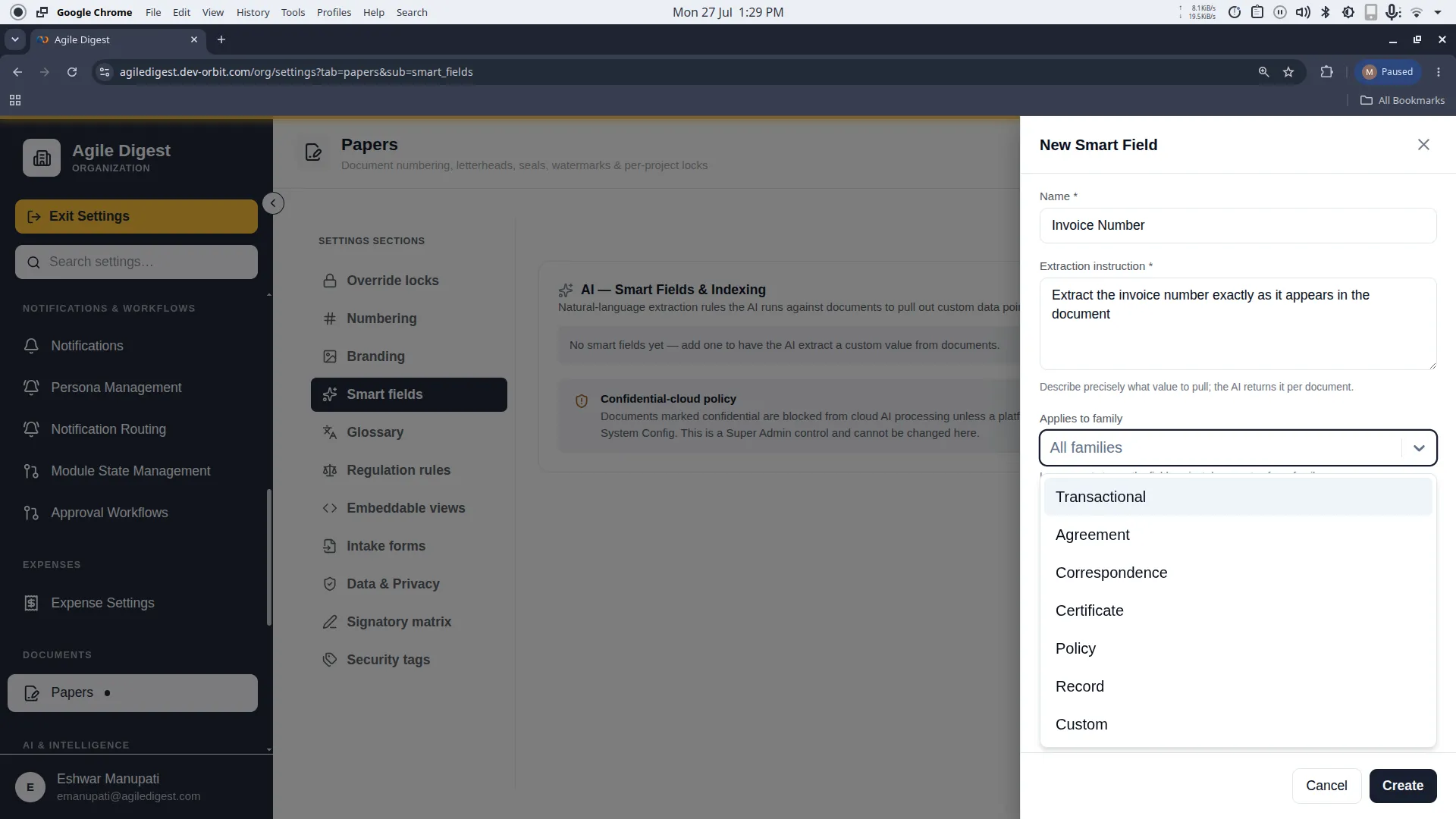
1. Name & Prompt
- Name: A short label for the data point (e.g., "Termination Notice").
- Prompt: The actual question or instruction you are giving the AI. Keep it simple and clear. (e.g., "How many days written notice is required to terminate this agreement without cause?")
2. Document Family (Filtering)
You don't want the AI looking for "Termination Notice" in a simple receipt. Use the Applies to family dropdown to tell the AI to only run this extraction on specific types of documents.
[!TIP] Optional Filtering (All Families)
This filter is entirely optional. If you leave it blank, the system will apply the rule to All Families, meaning the AI will attempt to extract the data from every single document uploaded into the system.
The available document families you can restrict to are:
- Transactional: Quotations, Invoices, Purchase Orders.
- Agreement: NDAs, MSAs, Contracts, SOWs.
- Correspondence: Offer Letters, Notices.
- Certificate: Warranties, Official Certificates.
- Policy: Internal policies, Standard Operating Procedures.
- Record: Minutes, reports, filings.
- Custom: Fully manual configuration.
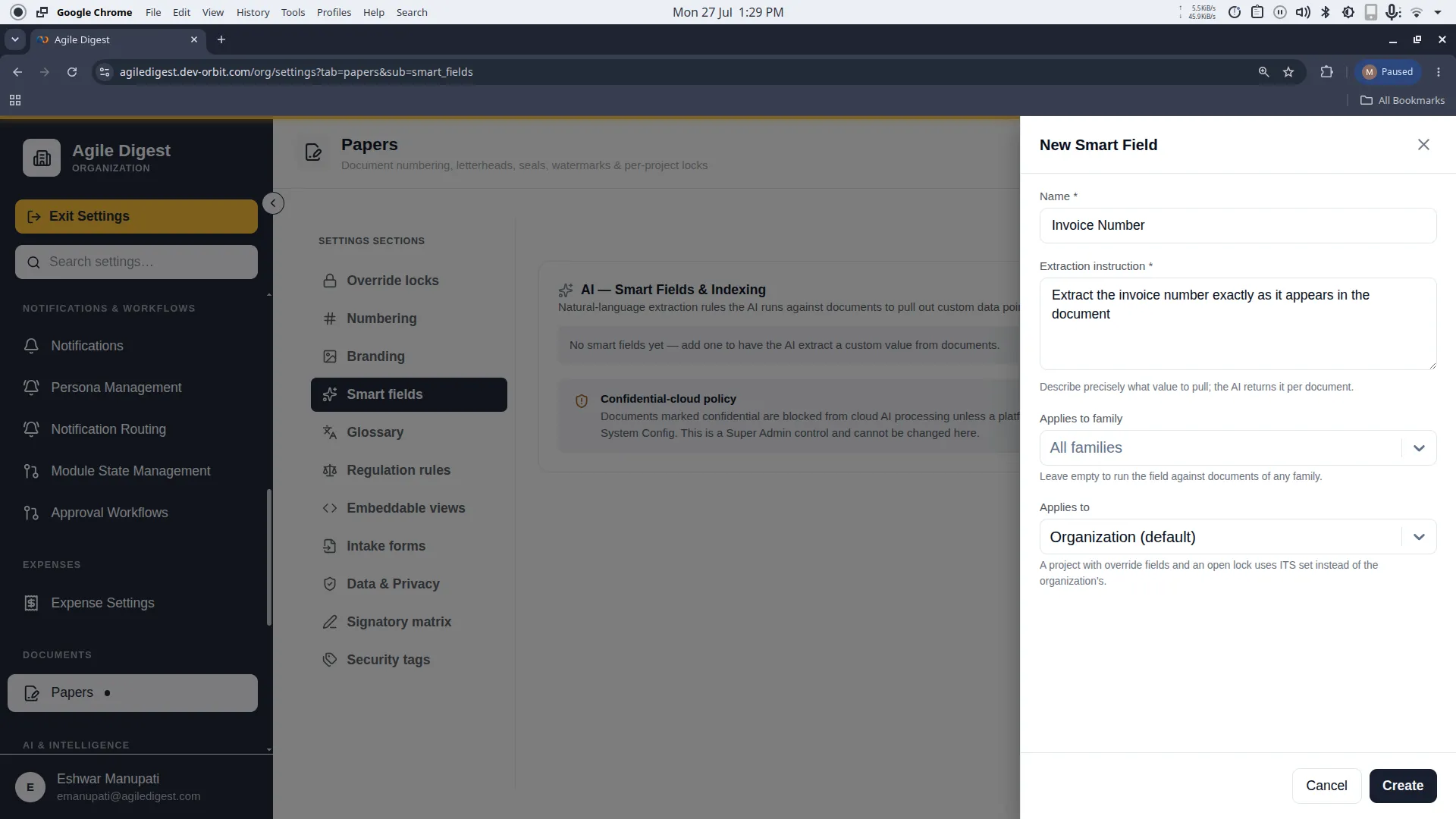
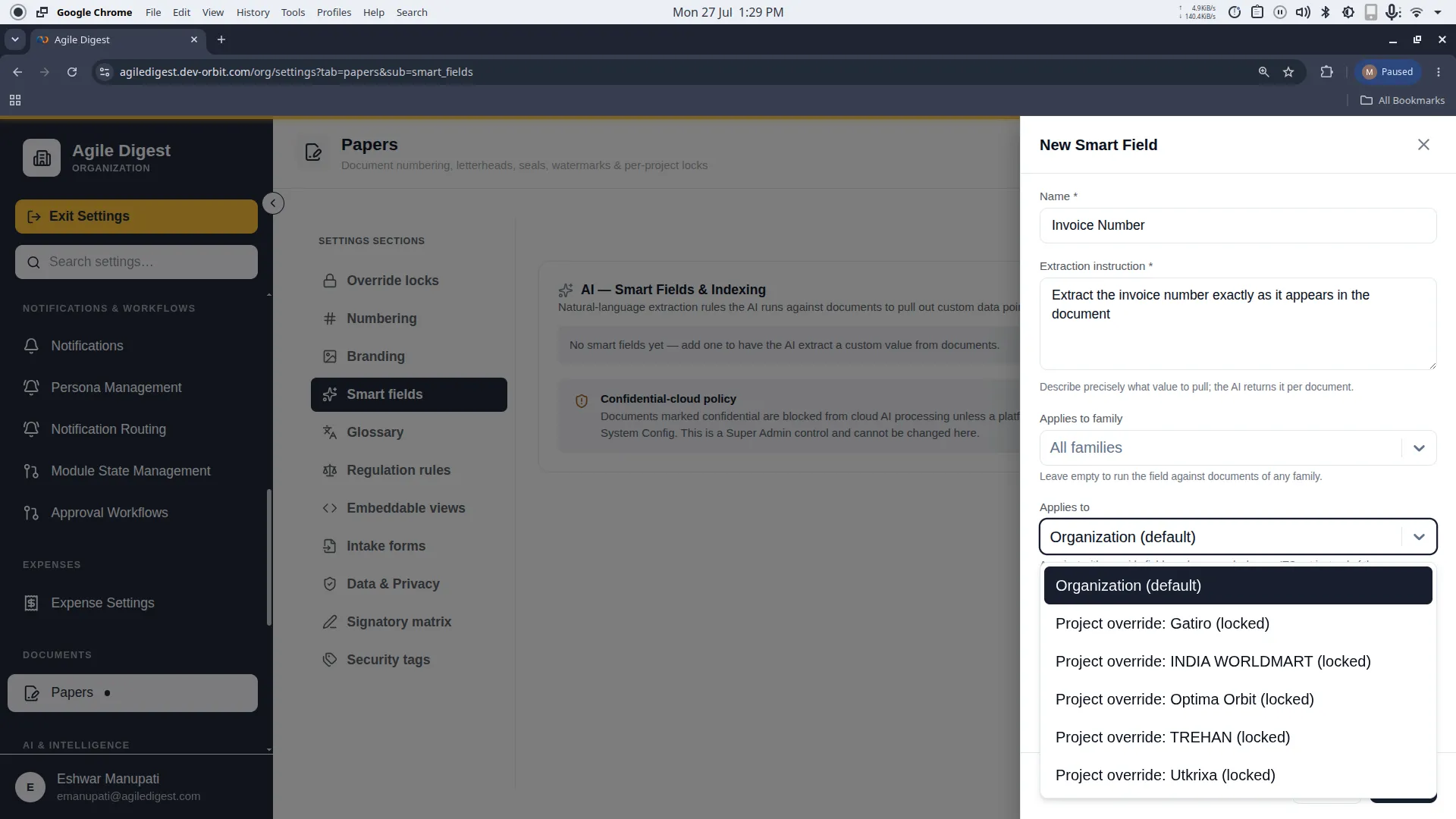
3. Applies To (Scope)
Just like other settings, you must decide the scope of this AI rule:
- Organization (Default): The AI will extract this data across all projects.
- Project Override: If a project has an unlocked Smart Fields Lock, you can assign this extraction rule exclusively to that project (perfect for niche client contracts).
Managing Smart Fields
Pausing (Active Toggle)
If you temporarily don't want the AI to extract a certain field, you don't need to delete it. Simply click the toggle switch in the grid to flip it to Inactive.
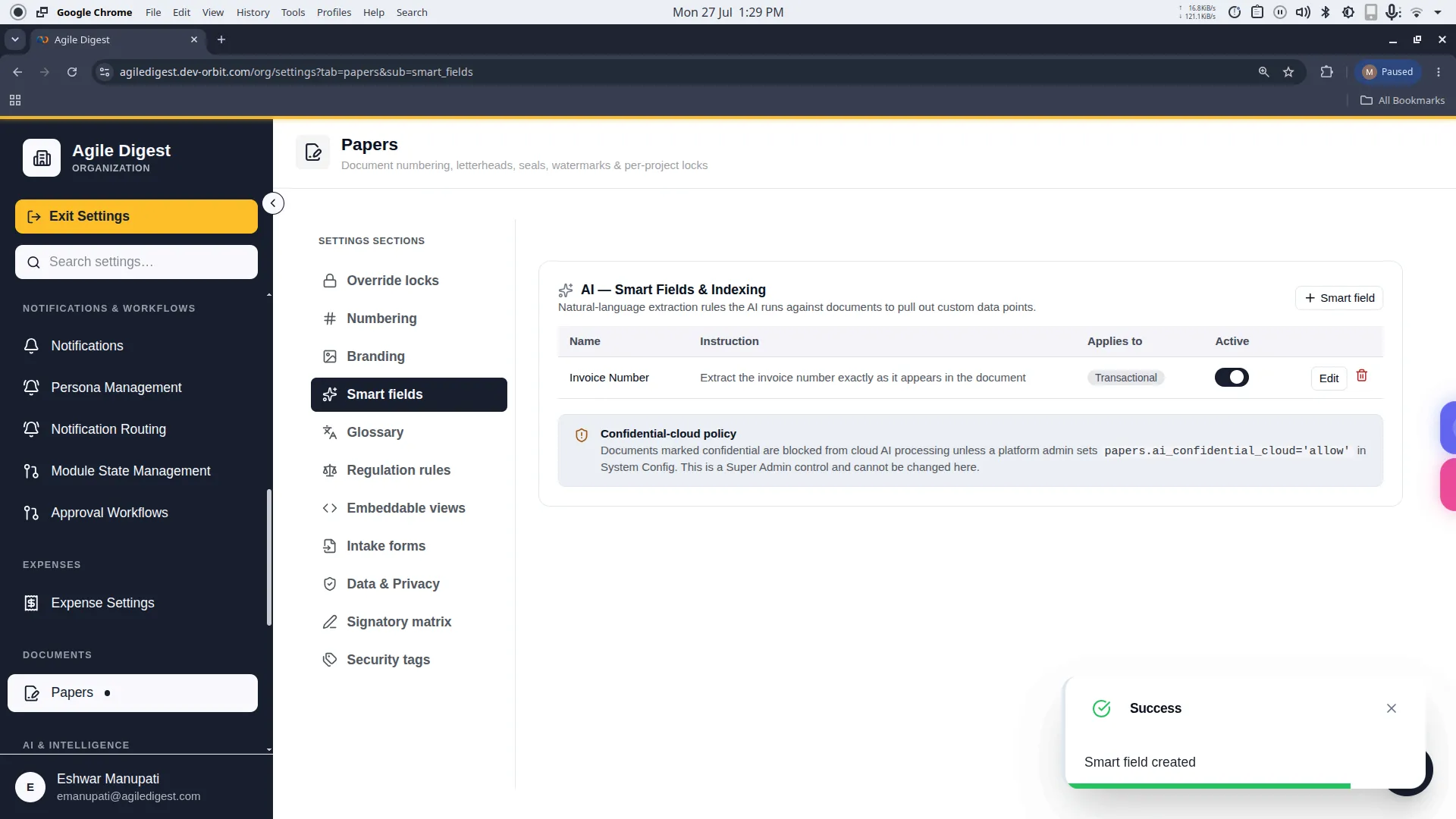
Editing
Hover over a smart field to reveal the Edit button.
- What you can change: You can freely update the
Name,Prompt, andDocument Family. - What you cannot change (Gotcha): You cannot change the Scope (whether it applies to the Organization or a Project) after it is created.
Deleting
Hover over a smart field to reveal the Delete button.
[!NOTE] Data Retention
Deleting a Smart Field stops the AI from extracting it on new documents. However, any documents that have already been processed in the past will safely keep their extracted values.
Security: Confidentiality & Cloud AI
At the bottom of this page, you will notice a hardcoded security warning regarding the ai_confidential_cloud policy.
[!CAUTION] Confidential Document Protection
By default, if a document is explicitly classified as "Confidential", the system physically blocks its text from being sent to the Cloud AI for Smart Field processing to protect sensitive data. Only a Super Admin can override this global security policy.