Translation Glossary
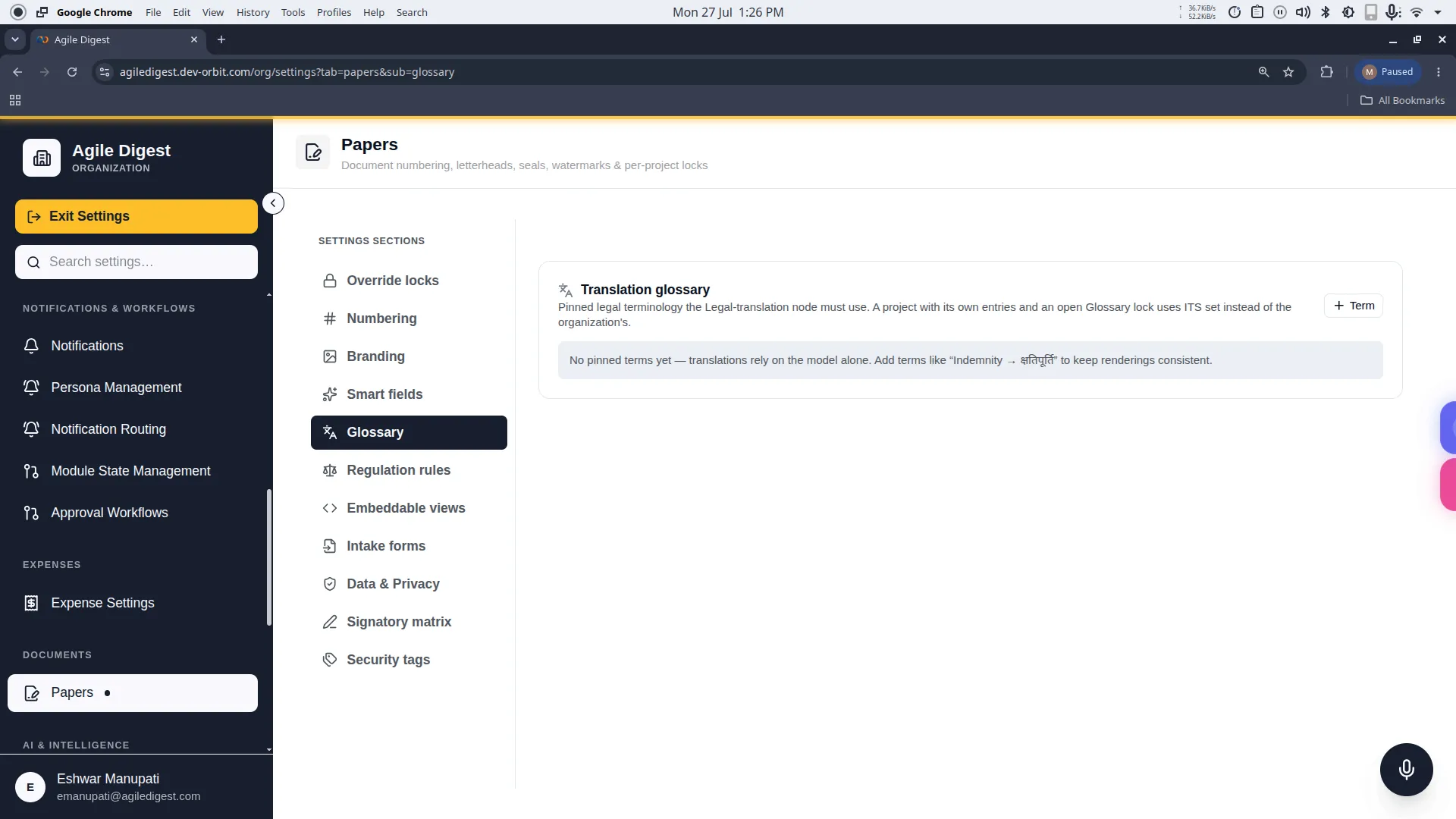
Welcome to the Translation Glossary guide.
If you use Orbit's AI to translate legal documents, you must ensure that specific legal terminology is translated perfectly and consistently every single time. The Translation Glossary allows you to "pin" mandatory translations for specific words, forcing the AI to always use your approved phrasing.
Deep Dive: Why Pin Legal Terms?
When AI translates a document, it often chooses words based on general conversational context. However, in legal agreements, using a synonym can entirely change the legal liability of a contract. For example, translating "Indemnity" to a generic word for "protection" instead of the exact legal equivalent in Hindi ("क्षतिपूर्ति") could render a clause unenforceable.
The Glossary acts as a strict dictionary. When the translation node runs, it scans the document for your Source Terms and forcefully injects your Target Terms, overriding the AI's natural language choices.
How to Access
To manage these settings, navigate to: Settings → Papers → Glossary (or click the Glossary tab in the Papers settings rail).
Adding a Pinned Translation
To force the AI to memorize a new term, click the + Term button. This opens the configuration drawer.
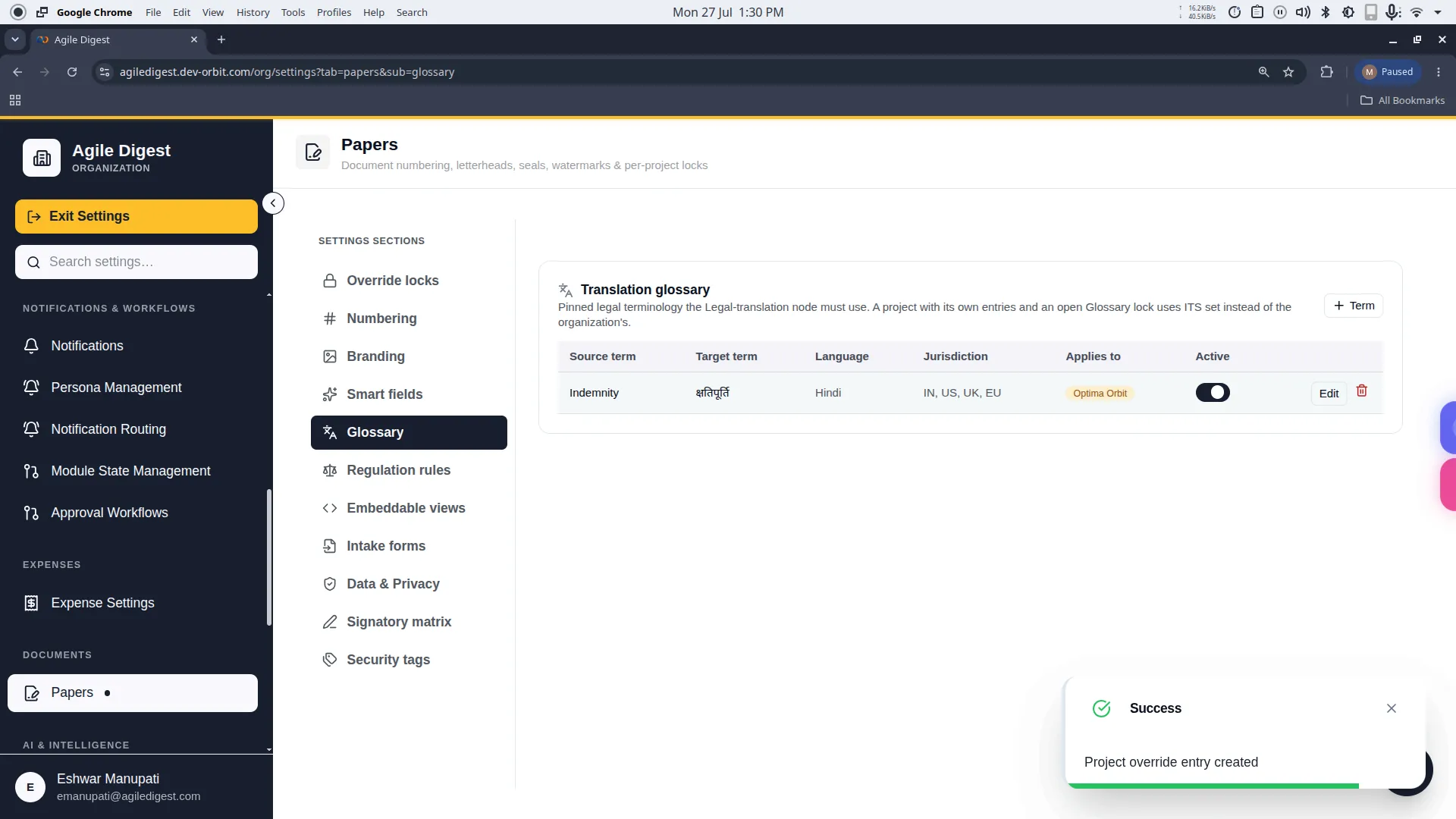
1. Translation Pair
- Source term: The original word or phrase in your document (e.g., "Force Majeure").
- Target term: The exact approved wording you want the AI to output (e.g., "अप्रत्याशित घटना").
- Target language: The language you are translating into (e.g., "Hindi").
- Gotcha: This must exactly match the language requested from the Legal-translation node in your behavior configs.
2. Context & Compliance (Optional)
- Jurisdiction: Legal terms can vary wildly even within the same language (e.g., Spanish in Spain vs. Spanish in Mexico). If this translation is strictly for a specific region, you can restrict it here (e.g., "MX").
- Notes: Leave an audit trail for your team. Explain why this specific translation was chosen (e.g., "Approved by external counsel on 12-Oct-2025 for compliance with local labor laws").
3. Applies To (Scope)
Just like all other paper settings, you must decide the scope of this glossary term:
- Organization (Default): The pinned term will apply universally to all projects company-wide.
- Project Override: If a project has an unlocked Glossary Lock, you can assign this term exclusively to them. This is critical if a specific client demands custom terminology in their localized contracts, distinct from your company's standard phrasing.
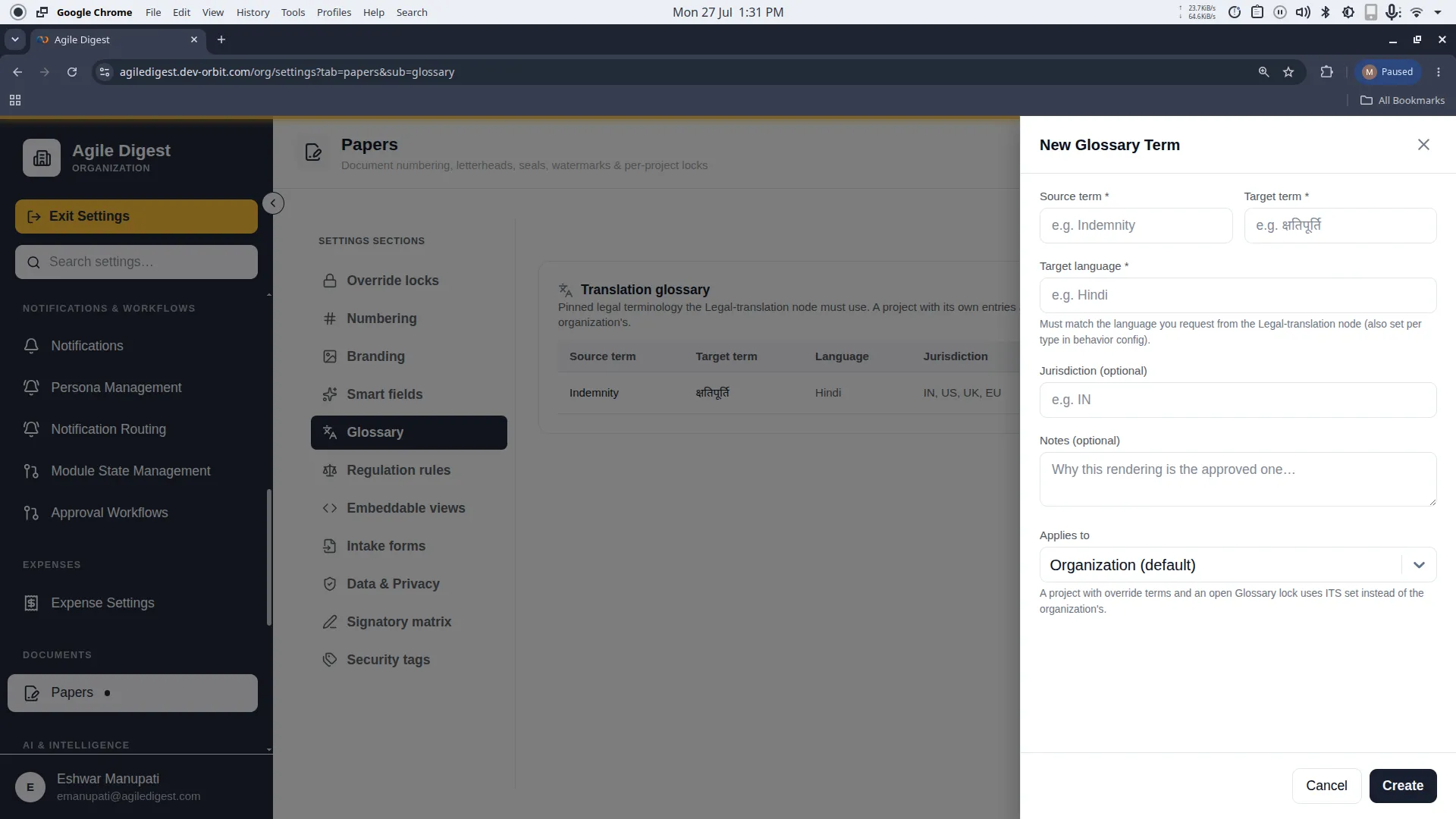
Managing Glossary Terms (Edit & Delete)
Pausing (Active Toggle)
If you are testing new contract language and temporarily don't want the AI to enforce a translation, you do not need to delete it. Simply click the toggle switch in the grid to flip it to Inactive.
Editing a Term
Hover over any glossary term in the list to reveal the Edit button.
- What you can change: You are free to update the Source term, Target term, Language, Jurisdiction, and Notes at any time.
- What you cannot change (Gotcha): Once created, you cannot change the Scope (whether it applies to the Organization or a Project). If you made a mistake with the scope, you must recreate the term from scratch.
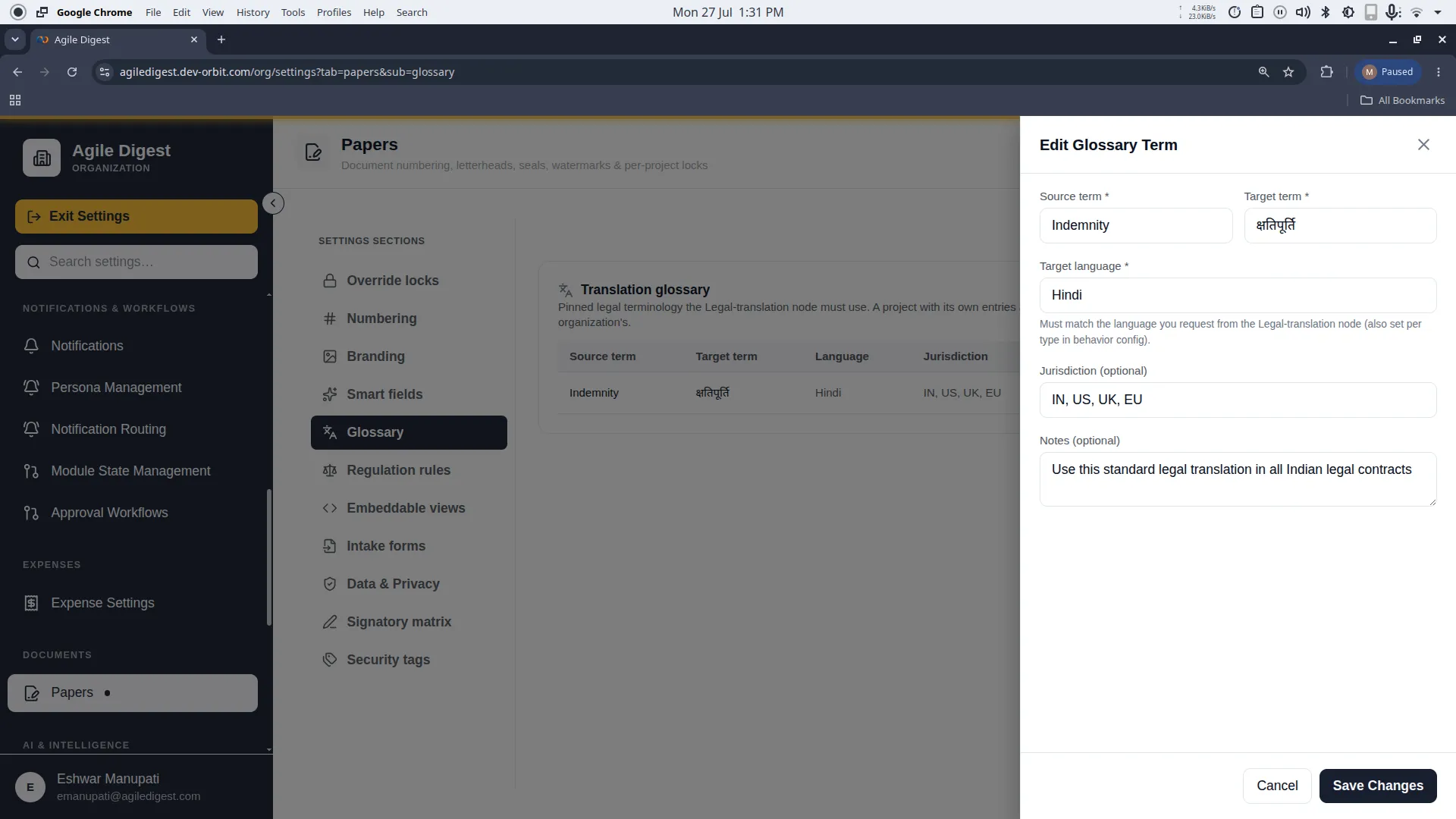
Deleting a Term
Hover over a glossary term to reveal the Delete action (a trash can icon).
[!WARNING] Deletion Impact
Deleting a term removes it from the glossary immediately. Any future legal translations will no longer pin that word, and the AI will revert to relying on its default vocabulary instead. Please note that documents that were already translated in the past are permanently saved and will remain unaffected.